For Windows 10 and 11
Paid Up
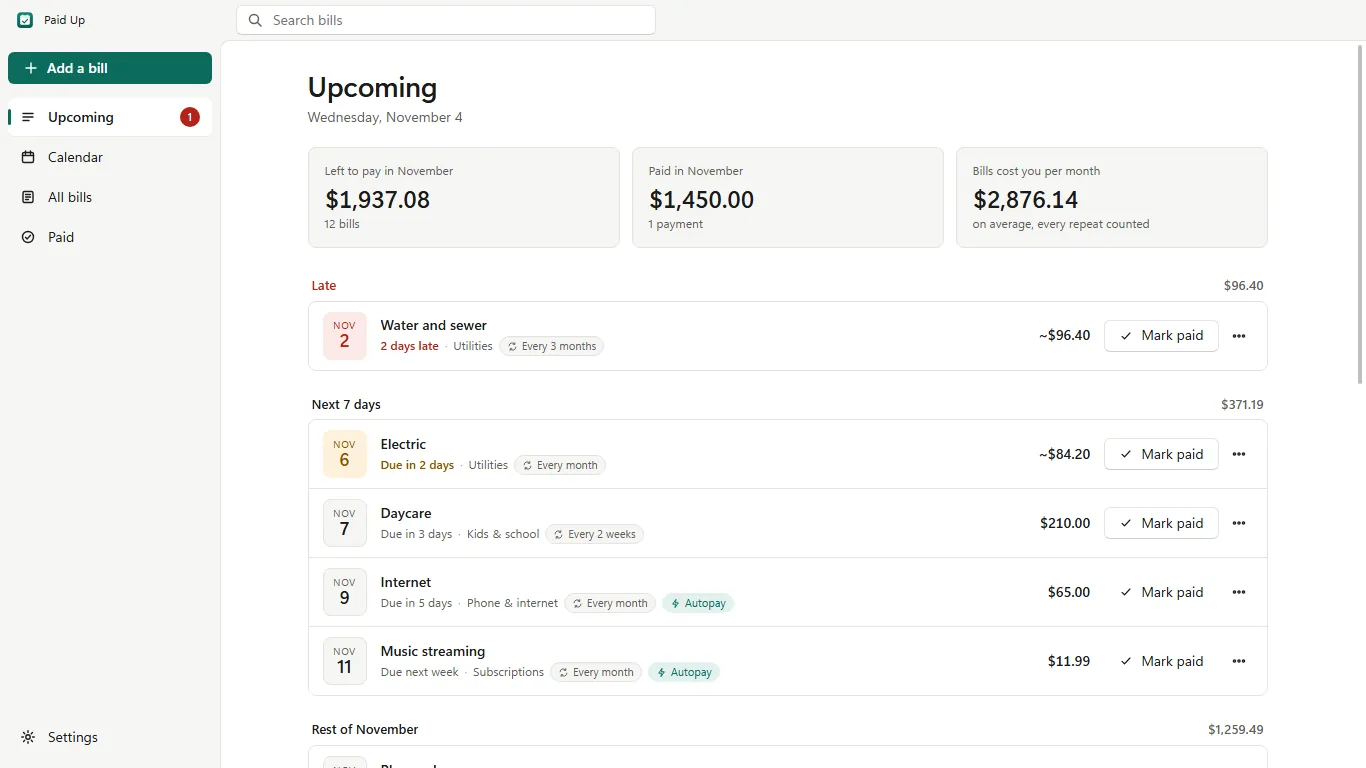
A bill tracker that shows what's late, what's due in the next 7 days and what's left to pay this month, and reminds you before each one.
- Everything stays on your PC
- No account
- No bank connection
- No ads, no tracking
How it works
Add your bills, then just pay them
Add the bills you pay. Mark one paid in a click and it moves to its next due date. Windows reminds you before each one.
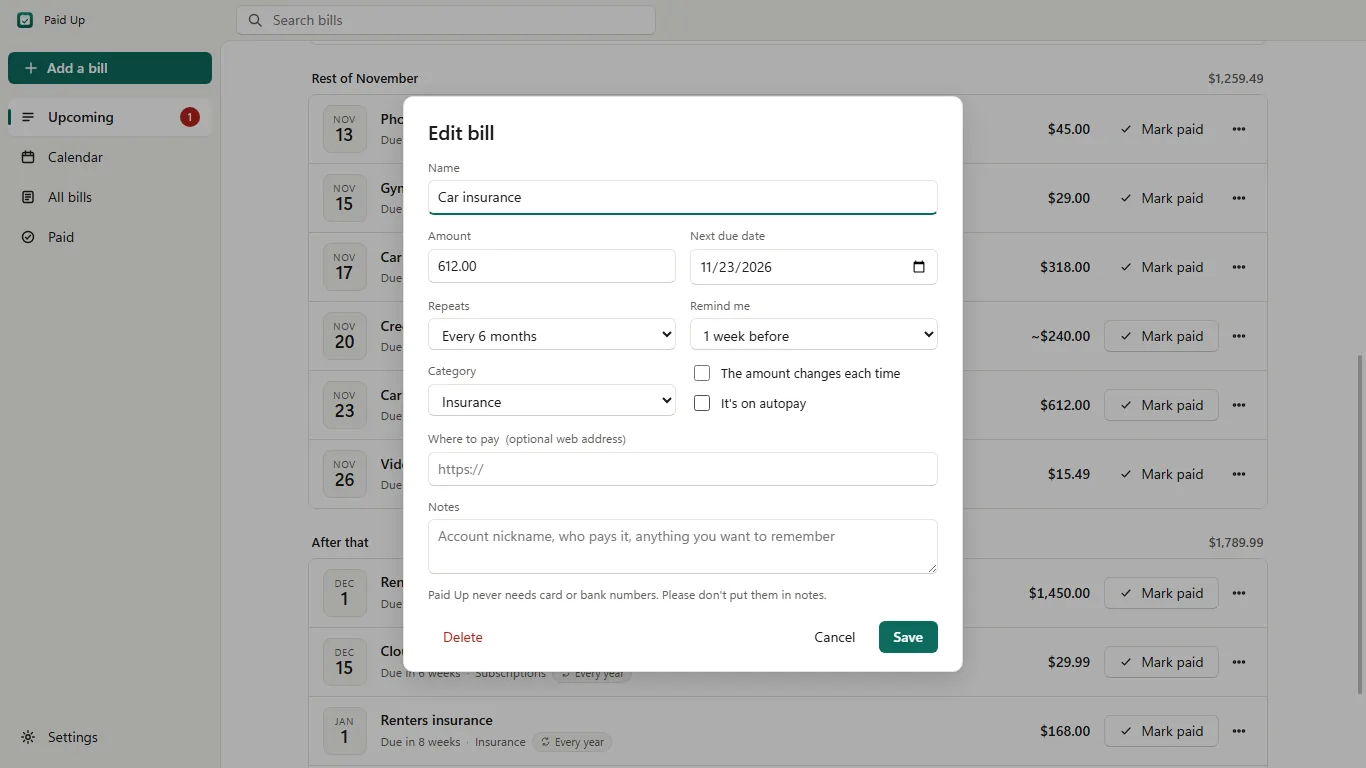
Add the bills you pay
Type the name, the amount and the next date it's due, and pick how often it repeats: weekly, every 2 weeks, monthly, every 3 or 6 months, yearly or once.
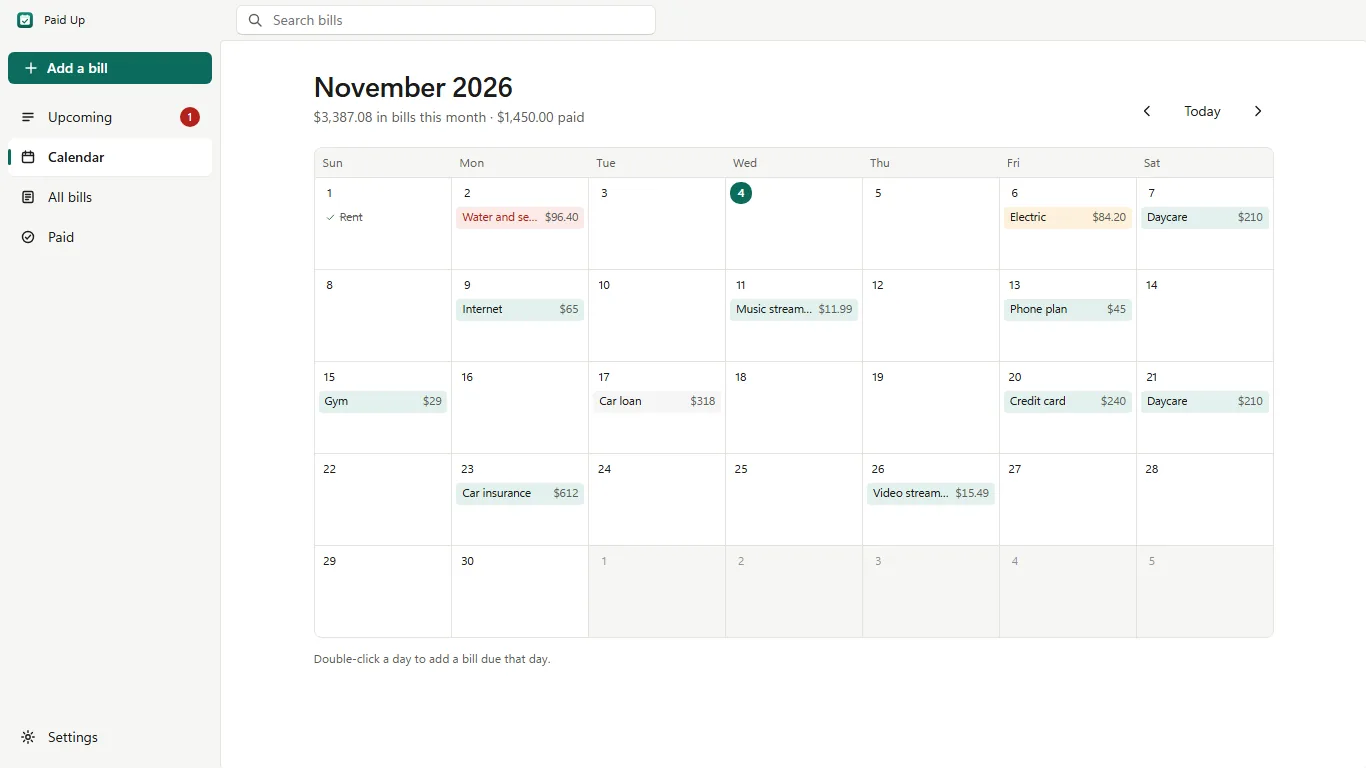
See the month at a glance
The calendar shows the month with every bill on its due day, paid and unpaid.
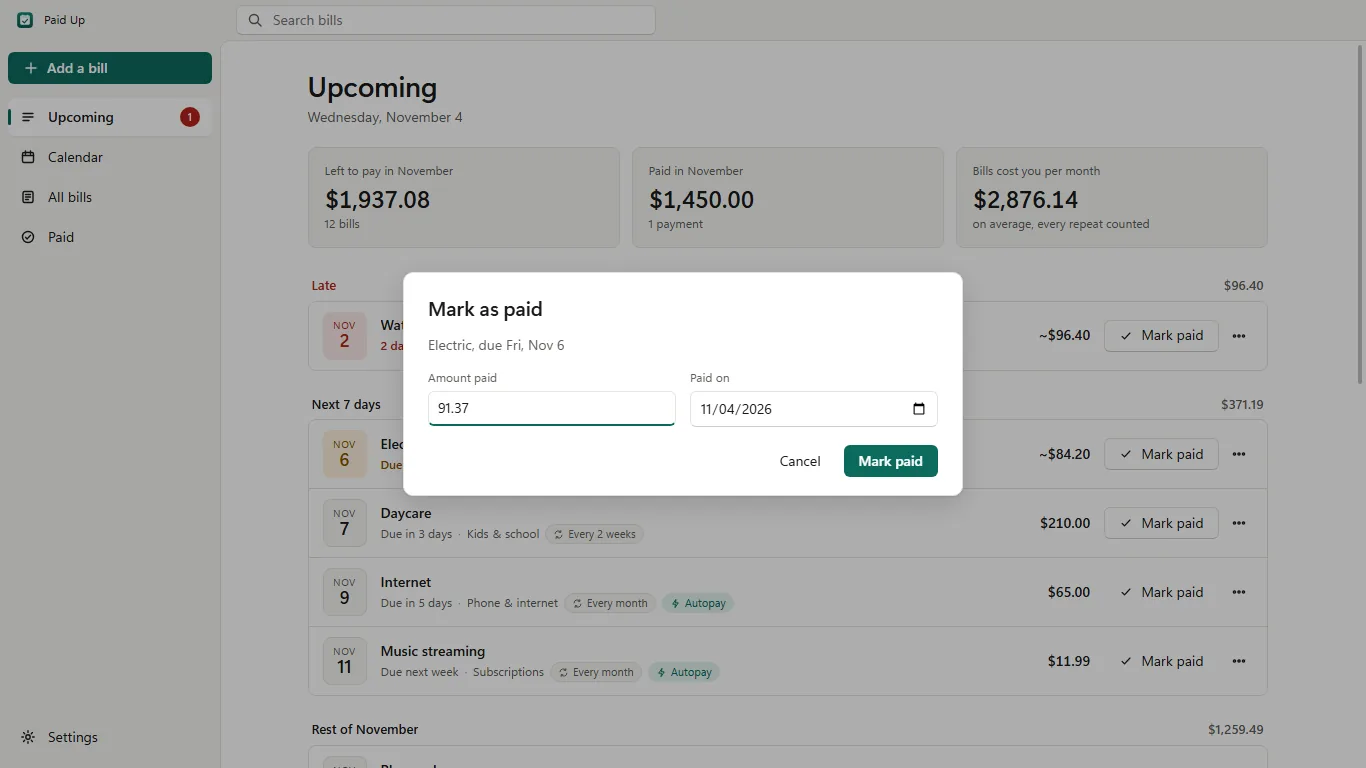
Mark it paid
One click, with Undo. Bills that change each time, like electric, ask how much you paid.
What it does
Everything you owe, in one list
Upcoming view
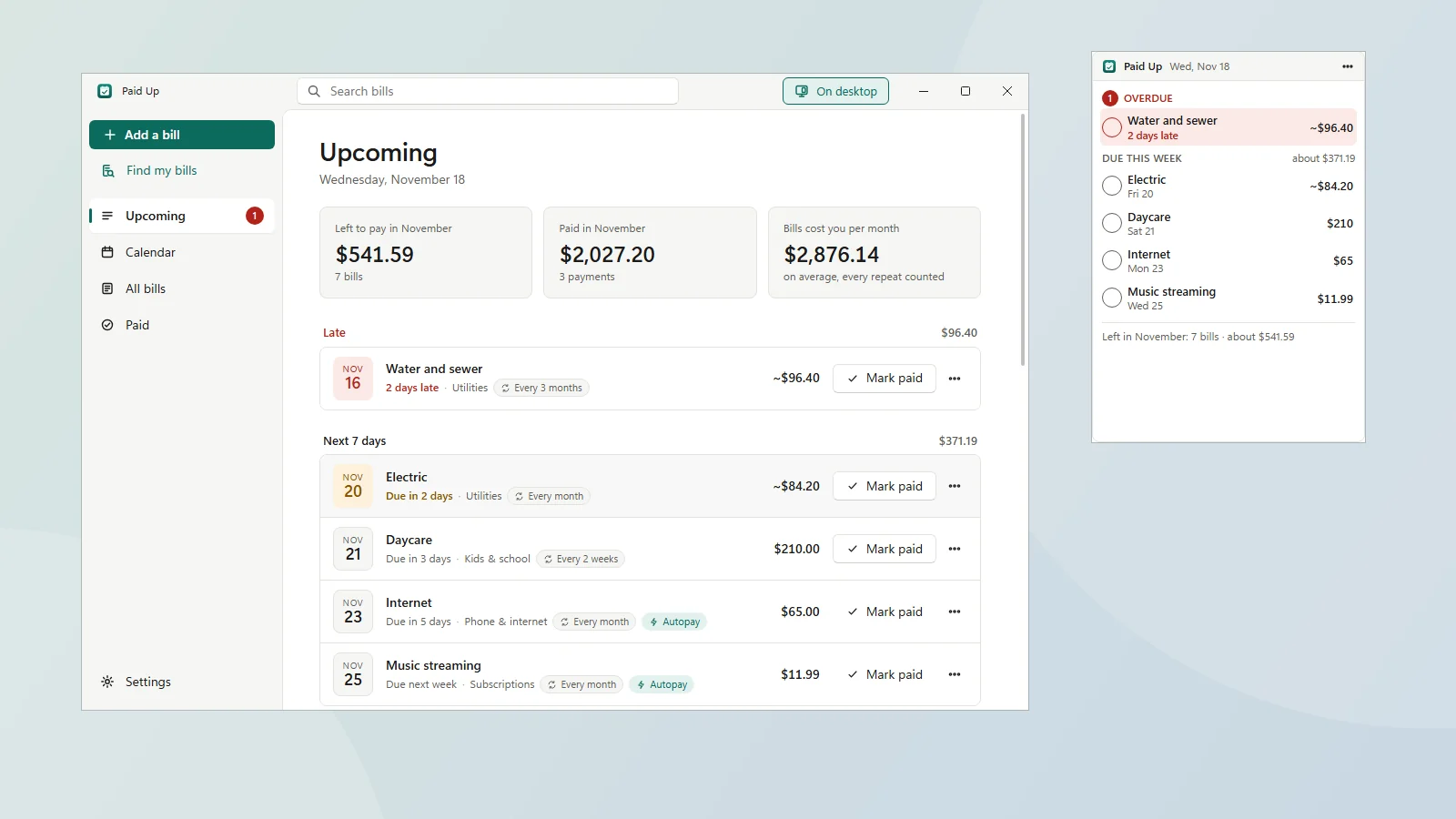
Late bills, the next 7 days, the rest of the month and later, with totals.
Mark paid, with Undo
One click to mark paid, with Undo. Skip a month you don't owe.
Repeats
From weekly to yearly; a bill due on the 31st stays at the end of the month.
Calendar and history
Calendar, an all-bills table with monthly cost by category, and a paid history by month.
Windows reminders
Notifications on the days you choose. Autopay bills only remind you on the day.
Find my bills
Open a CSV export from your bank or card and Paid Up sets up the bills and subscriptions in it and ticks off the ones already paid. No bank login; the file stays on your PC. How it works.
Export and backup
CSV export for Excel or Google Sheets, and one-file backup and restore.
Your look, your currency
Light and dark mode, and your currency.
Keyboard shortcuts
Keyboard shortcuts for everything.
Bills on your desktop
A small widget with what's overdue, due this week and left this month; tick a bill to mark it paid. On top, a normal window, or under your windows.
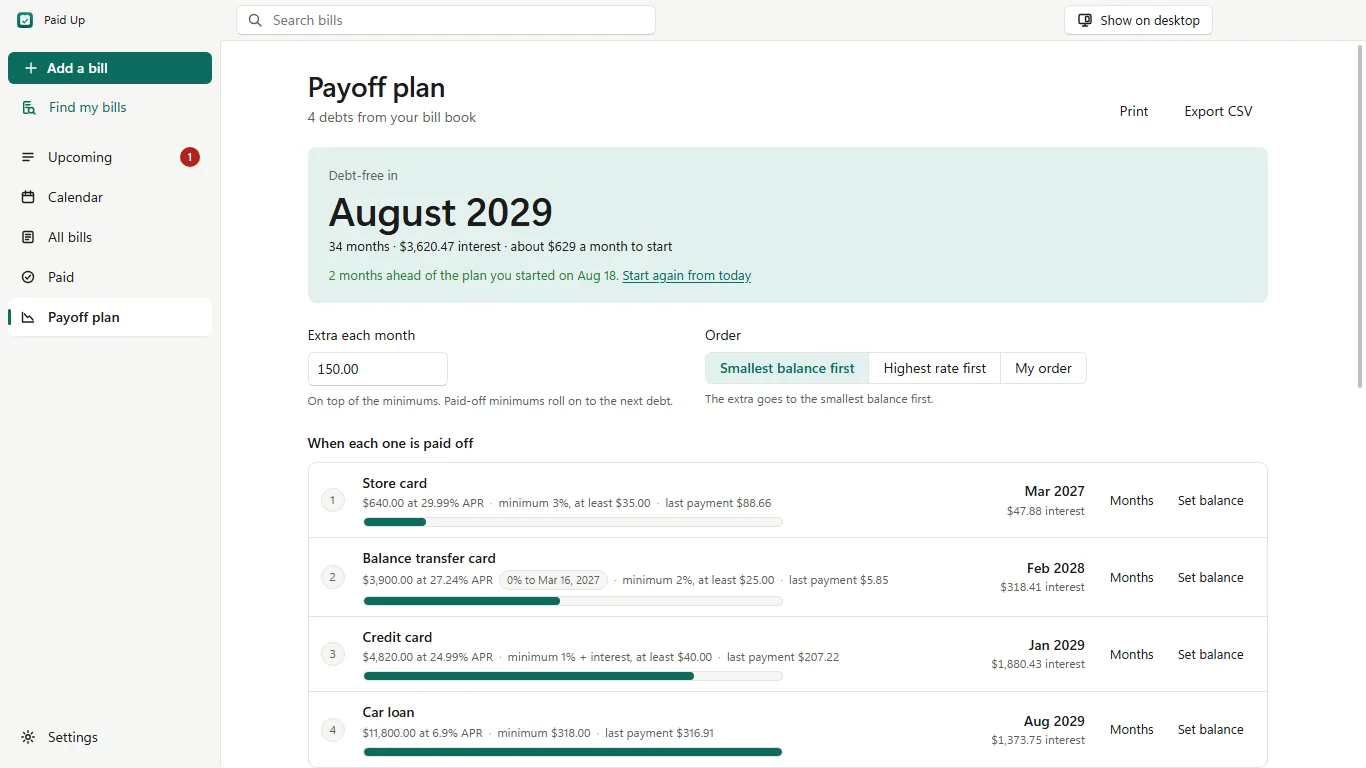
The month you're debt-free
Give the cards and loans in your bill book a balance and a rate and see the month you're debt-free. Smallest balance first, highest rate first or your own order, 0% intro rates, a different extra in any month; every payment you mark paid moves the plan.
More from the app
Real screens, made-up bills
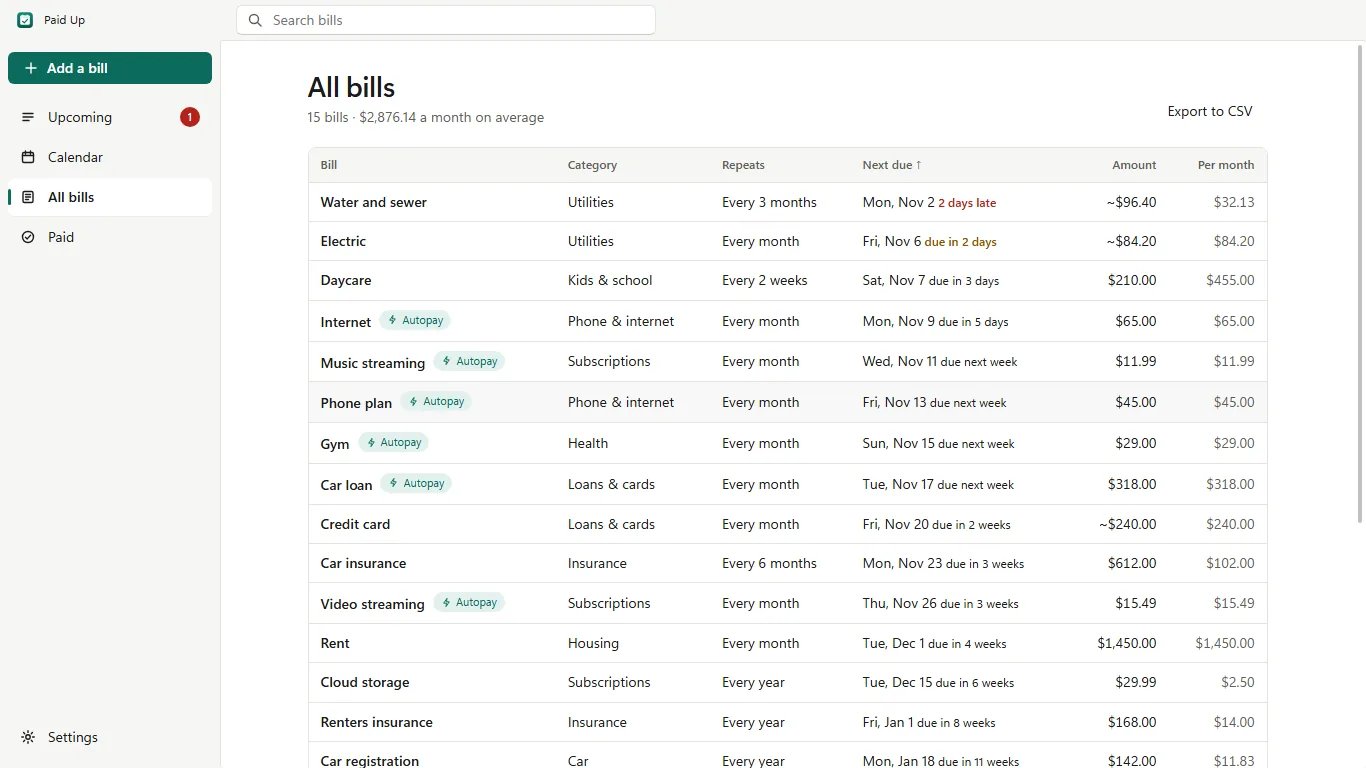
Every bill with what it costs you per month on average. 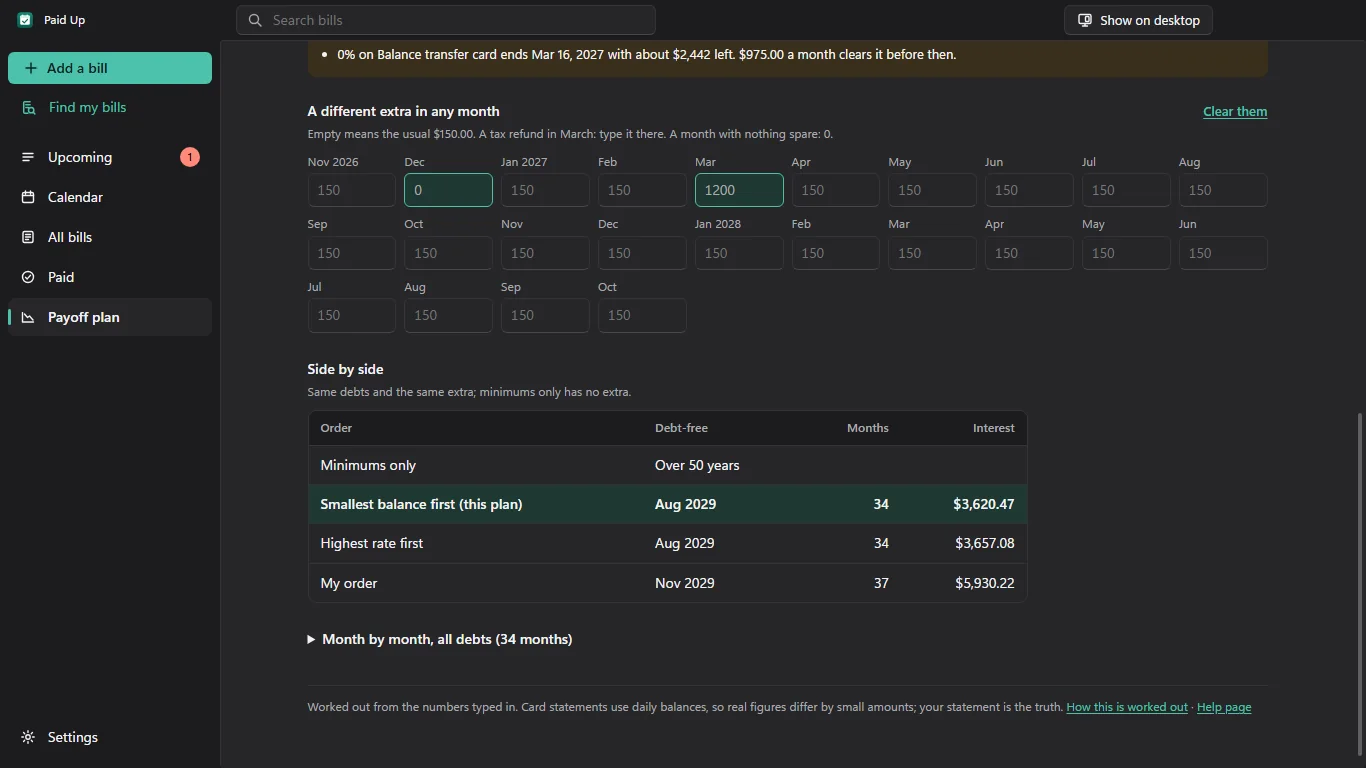
A different extra in any month, and every payoff order side by side.
Pricing
One purchase, no subscription
The Microsoft Store gives you 7 days to try every feature.
Paid Up
$6.99 once
With a 7-day free trial from the Store.
- No subscription
- No account, no ads
- Your bills stay on your PC either way
Privacy
Your bills never leave your PC
- Everything stays on your PC
- No network connections at all
- No account, no bank login
Paid Up keeps your bills on your PC and sends nothing anywhere: no account, no sync, no analytics, no crash reports, no ads. It never asks for card or bank numbers and never connects to a bank. Reminders are ordinary Windows notifications created on your PC. Privacy policy
Questions
Common questions
I clicked Mark paid by mistake
Press Undo on the message that pops up, or remove the payment from the Paid list.
How do I get reminders without opening Paid Up?
Paid Up can only send a notification while it's running. Turn on Keep Paid Up in the tray when I close it in Settings, then switch Paid Up on under Windows Settings › Apps › Startup. Bills on autopay only remind you on the day itself.
How do I move to a new PC?
Settings › Export a backup saves one file with all your bills and payments. On the new PC, install Paid Up and choose Restore a backup.
What happens after the free trial?
The Microsoft Store gives you 7 days to try every feature. After that the Store asks you to buy Paid Up before it opens again. Your bills stay on your PC either way. Purchases and refunds go through the Microsoft Store (Microsoft account › Order history).
Paid Up can't read its file
It opens the newest good version it kept and tells you so. Older versions sit in the data folder under “versions” (Settings › Open the data folder).
More in Paid Up help, Find my bills, the desktop widget and the payoff plan, or write to hello@tomorrowish.dev.
Know what's due before it's late
On the Microsoft Store for Windows 10 and 11. No account, no bank login.