Help · Paid Up 1.2
Bills on your desktop
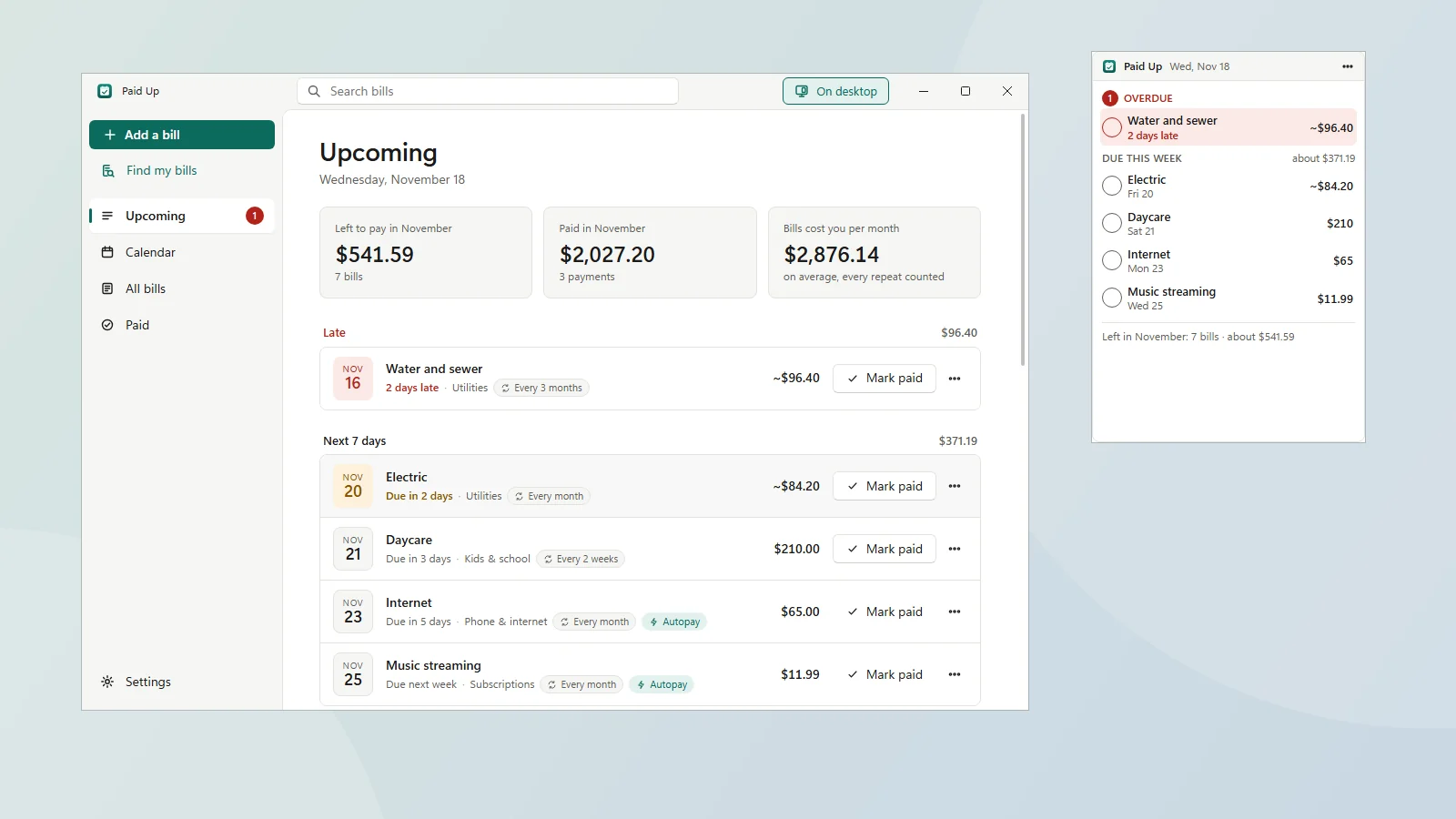
Paid Up can keep a small window on your desktop with the three things that matter day to day: what's overdue, what's due this week and what's left to pay this month. Tick a bill there and it's marked paid, in the main window too, at once. It's the same bill book, not a copy.
Turn it on
Click Show on desktop at the top right of Paid Up (or press Ctrl+D). It's also in Settings › On the desktop. The same button hides it again.
What it shows
- Overdue, oldest first, with a red count and how many days late each one is. A bill that has missed more than one due date says so.
- Due this week: everything due today and in the next 7 days, with the weekday and the amount. A weekly bill that falls twice in that time shows twice.
- Left this month: how many bills are still to pay this month and their total, or "all paid" when there's nothing left.
- Bills that change each time (like electric) show their amount as "about" (~).
Tick to mark paid
Click the round tick next to a bill to mark it paid today for its usual amount. An Undo shows for 5 seconds (Ctrl+Z works too). For a bill that changes, the tick asks how much you paid in a small box right there: type it and press Enter (Esc to cancel). That amount becomes the bill's new "about" amount, as it does in the main window. Click a bill's name to open it in Paid Up. Nothing else can be changed from the widget, so it's hard to change something by accident.
Three sizes
- Narrow list: overdue and this week, one under the other.
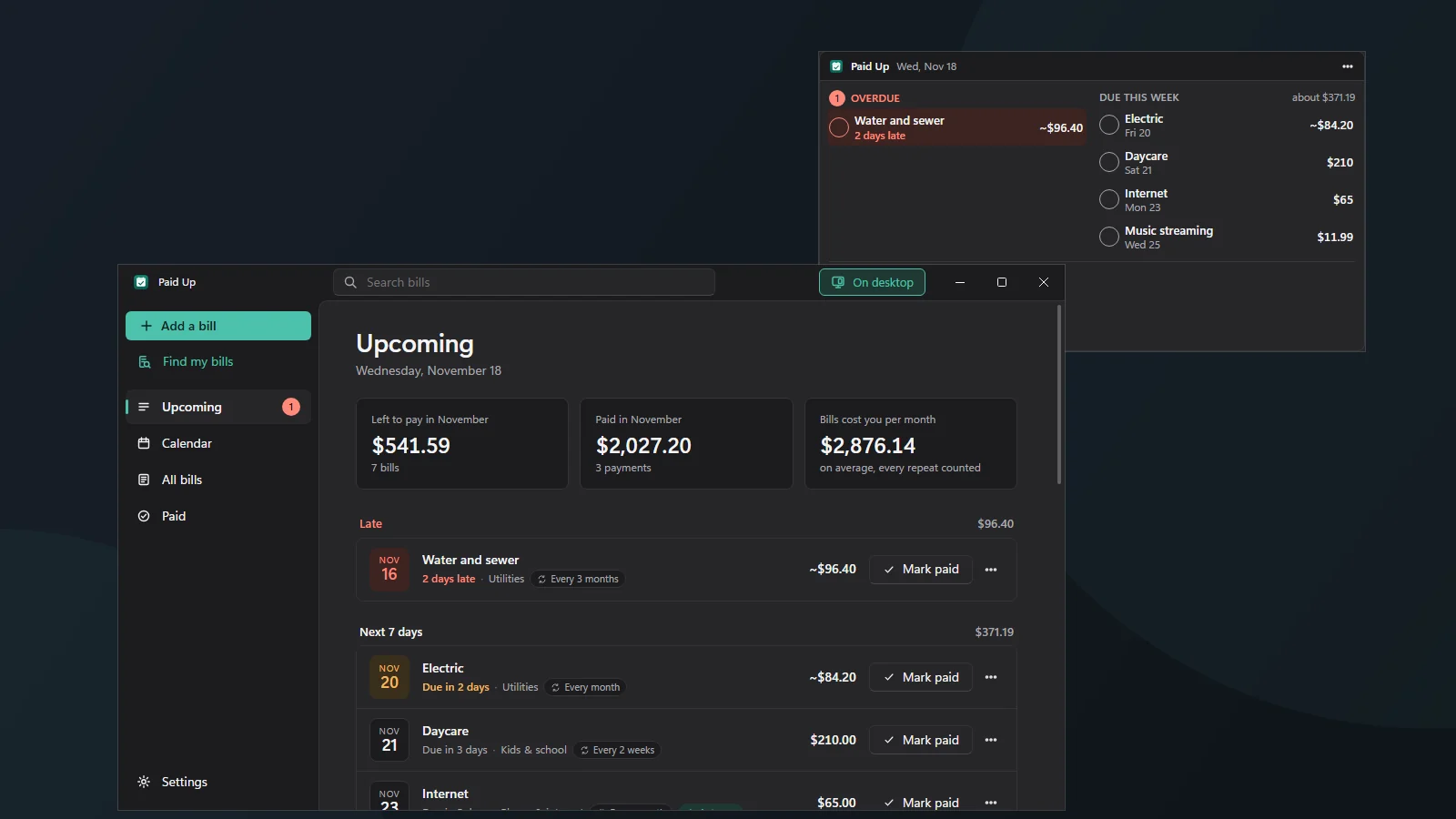
- Wide: overdue on the left, this week on the right.
- Tiny strip: one line, like "1 overdue · 4 this week · $541.59 left".

Drag the widget's top bar to move it; it snaps to the edges of the screen. Drag one of its edges to step between the sizes, or pick one from its menu. If you use Windows' bigger text (Settings › Accessibility › Text size), the widget grows with it, up to 200%.
On top, normal, or under your windows
Right-click the widget (or press the Menu key or Shift+F10 when it has focus, or click ⋯) for its menu:
- Always on top: stays above every other window, good on a second monitor or docked at the side of a big one.
- Normal: an ordinary window; it comes forward when you click it and other windows can cover it.
- On the desktop (under windows): stays under all your other windows, even when you click it, like part of the wallpaper. You see it whenever the desktop is showing.
- Opacity: 100%, 85% or 70%.
- Open Paid Up and Hide widget.
Paid Up remembers where the widget was, its size and its layer, separately for each monitor setup: your laptop on its own and the same laptop at a desk with two screens each keep their own spot. If the monitor it was on isn't there any more, the widget comes back fully on your main screen.
Start with Windows
In Settings › On the desktop, turn on Start with Windows (it's off until you turn it on; the widget offers it once, after your first tick). When you sign in, Paid Up opens just the widget, without its big window, and keeps sending your bill reminders. You can also switch it off in Windows Settings › Apps › Startup.
- Close the main window while the widget is showing and the widget stays.
- Choose Hide widget with no main window open and Paid Up closes, unless "Keep Paid Up in the tray" is on in Settings: then it keeps running in the tray for reminders.
Light, dark and high contrast
The widget follows Paid Up's theme (Settings › Appearance: Windows' setting, light or dark) and Windows' high contrast themes. Every part can be reached with the keyboard (Tab, Enter, Esc, the Menu key) and is named for Narrator.
Privacy
The widget is a second window onto the bills already on your PC. It makes no network connections, like the rest of Paid Up, and nothing leaves your PC. Details: privacy.
Not the Windows Widgets board
This is Paid Up's own desktop window, not a card on the Windows 11 Widgets board (Win+W). It works the same on Windows 10 and 11.
Questions: hello@tomorrowish.dev.