Stubbook help
Split one entry between categories
One check can pay for several things. The mortgage payment is principal, interest and escrow; the store trip was part groceries, part household; the paycheck is gross pay minus tax and insurance. A split keeps the entry as one line in the register, with the amount the bank sees, and gives each part its own category.
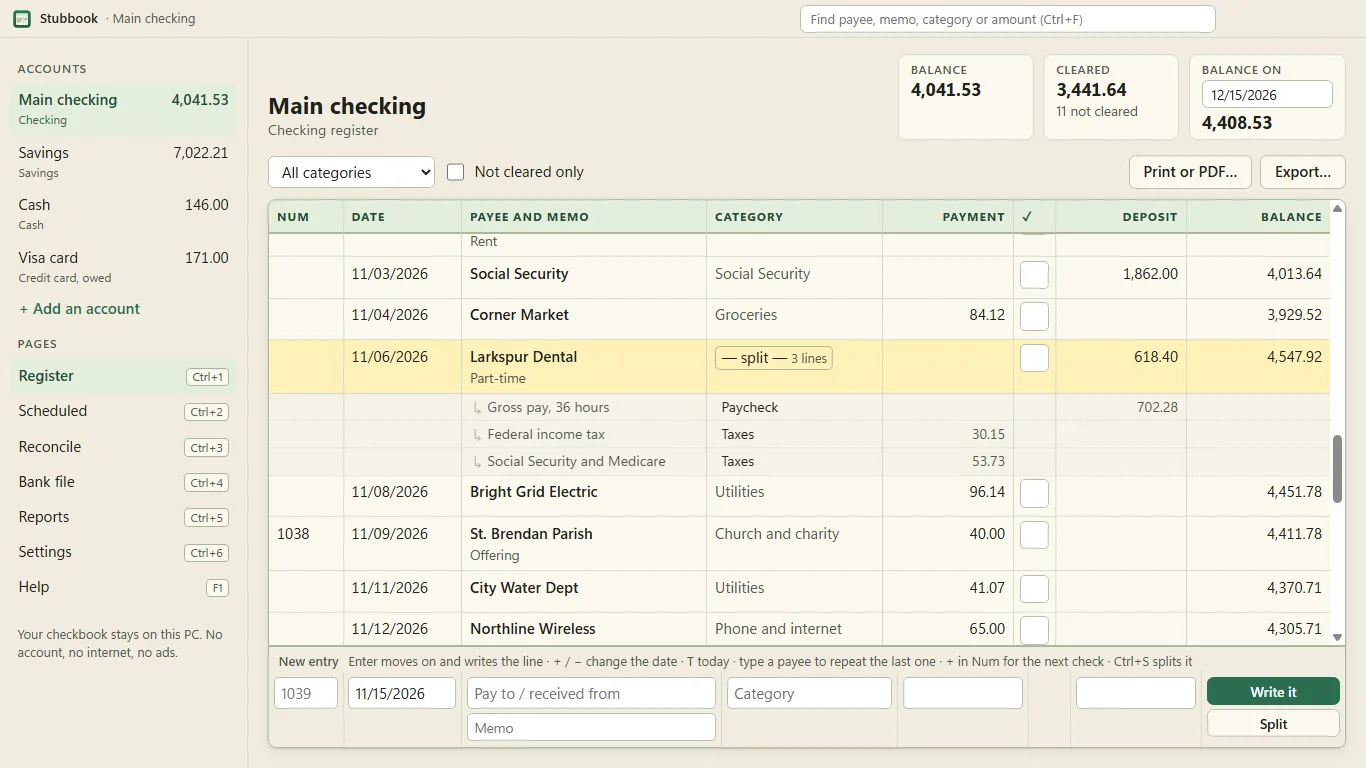
How to split an entry
- Write the entry as usual: payee, and the amount under Payment or Deposit.
- Press Ctrl+S (or the Split button). The split lines open under the entry, the first one holding its category and the whole amount.
- Type the first part's amount and press Enter. A new line appears holding what is left. Give it a category, a memo if you like, and its amount; Enter again for the next one.
- Left to assign counts down as you go. When it reads 0.00, Enter on the last amount writes the entry.
An entry is only written when its lines add up to it. If they don't, Stubbook asks: put the rest in Uncategorized, or keep editing. An old entry can be split the same way: select it in the register and press Ctrl+S.
A paycheck, with minus lines
Lines go the same way as the entry, so on a deposit the gross pay is a plain amount and the deductions are typed with a minus. A paycheck that put 2,318.46 in the bank:
| Category | Memo | Amount |
|---|---|---|
| Paycheck | Gross pay | 3,120.00 |
| Taxes | Federal income tax | -401.22 |
| Taxes | Social Security and Medicare | -238.68 |
| Insurance | Health plan | -161.64 |
| Deposit | 2,318.46 | |
Reports count every line under its own category: the year's gross pay shows as money in, and the tax and insurance as money out. The same works the other way inside a payment (a refund at the register is a minus line on a purchase).
In the register
- A split entry is one row with — split — as its category. Click it, or press the Right arrow on the entry, to see its lines indented under it; the Left arrow hides them.
- The running balance, the cleared tick and Reconcile work on the entry's total, the amount on the bank statement.
- Find searches the lines too (type "escrow" and the mortgage payment shows, its lines open), and the category list finds entries that have a line in that category.
- A payee you split last time fills the same lines next time, ready to change.
- Scheduled entries can be split. Entering one shows its lines first, so this month's principal and interest can change before it's written; the schedule itself stays as it was.
From Quicken or Microsoft Money
A QIF file exported from Quicken or Microsoft Money keeps each entry's split lines when Stubbook brings it in: category, memo and amount, percentage splits turned into amounts. If a file's lines don't add up to the entry, a last "Uncategorized" line holds the difference, and the import page names those entries before anything is brought in. Exporting a QIF from Stubbook writes the lines back. A CSV export can put a split entry on one row (its lines written in the Category column) or one row per line, with a "Split of" column holding the entry's total.
Entries brought in with an earlier Stubbook that say "(split)" in the memo lost their lines then. To get them back, bring the same QIF file in again and choose "A new account" under Put it; once the new account looks right, right-click the old one in the account list to delete it.
What a split can't do yet
A split line can't be a transfer to another account (the savings part of a paycheck, say). The whole entry can still be a transfer, as before. A QIF file with a transfer inside a split keeps that line with the account's name as its category ("Transfer: Savings") and says so on the import page; the other account isn't changed.
The file stays yours
Splitting an entry for the first time moves Stubbook's data file to a newer layout. Before that first save it keeps a copy of the file as it was, named "Stubbook backup date before splits", beside the daily backups (Settings › Backups). Everything stays on your PC; Stubbook never connects to the internet.
More: Stubbook help · open the file your bank gives you · hello@tomorrowish.dev