For Windows 10 and 11
Desk Glance
Small widgets on your Windows desktop show what is left today in TickTick, Habitica, Todoist and more, and you tick things off right there.
- Your sign-in stays on your PC
- No account
- No analytics
- No ads
How it works
Add a widget, connect once, glance
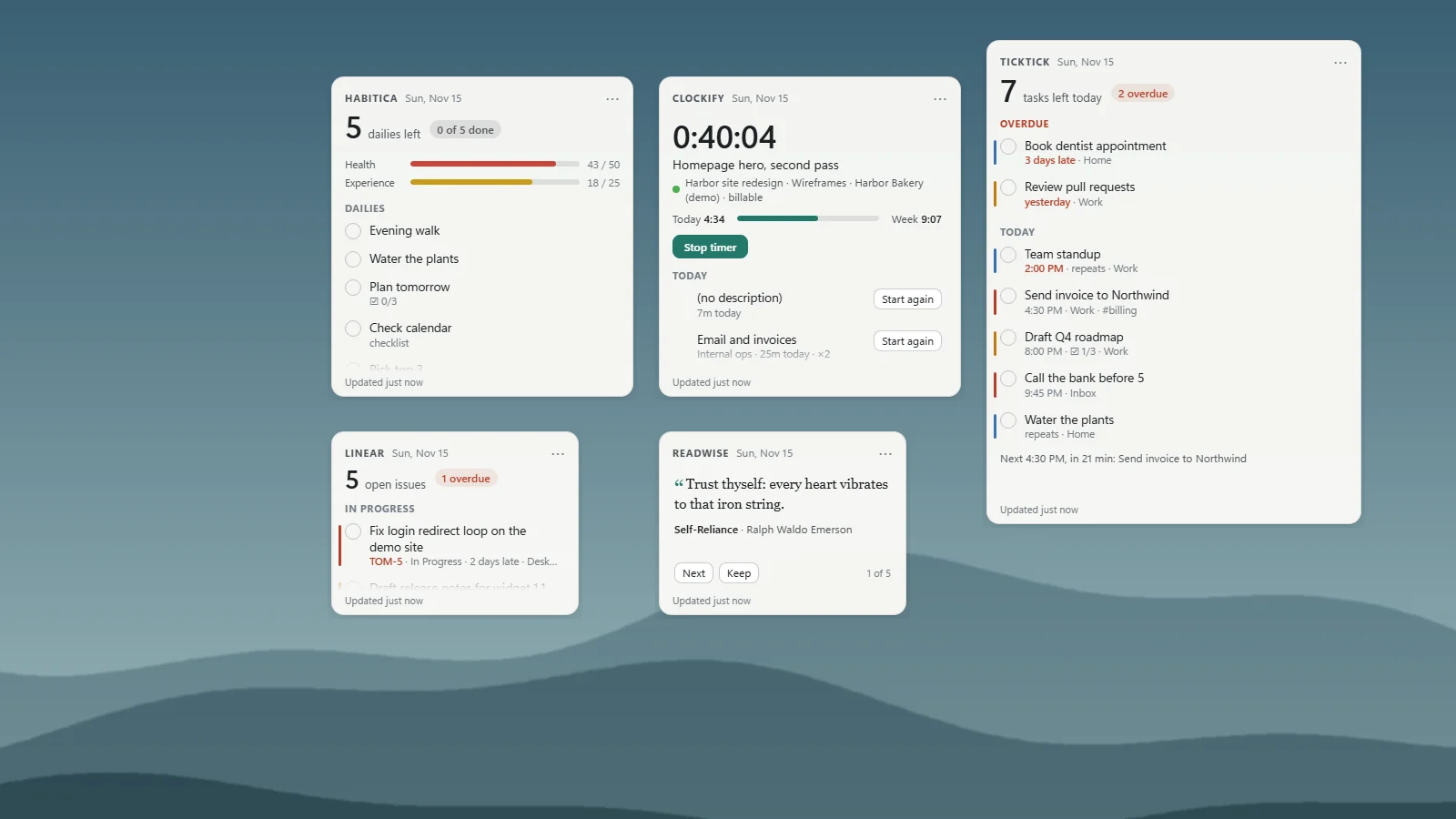
The widgets sit on your desktop, under your windows, like part of the wallpaper. Minimise everything, or just glance past a window, and you see what is left today.
Add a widget
Open Desk Glance from the Start menu or the icon next to the clock and pick one under Add a widget. Drag it by its top edge to where you want it.
Connect with your own token
Each service is connected once, with a personal token you make in that service. Paste it under Settings › Sign-ins. Desk Glance tries it once before keeping it.
Tick it off from the desktop
A tick waits four seconds with Undo before anything is sent. Your widgets refresh by themselves every few minutes.
Made for a real desk
Widgets that stay where you put them
Sizes and screens
Three sizes per widget, as many widgets as you like, on one monitor or several. They come back where you left them.
Under or on top
On the desktop under your windows, or always on top, per widget.
Undo before it is sent
Every tick waits four seconds with Undo before anything is sent.
Works offline
Offline? Each widget keeps the last thing the service said, greyed, with the time it was updated.
Light, dark, large text
Light and dark follow Windows. Text up to 200%, and the widgets grow so nothing is cut off.
Starts with Windows
One switch in Settings.
Seven services
TickTick, Habitica, Todoist, Linear, Asana, Clockify and Readwise, each with its own widget.
Always up to date
Widgets refresh by themselves every few minutes. The bottom line says when, or why it could not.
Token kept encrypted
Desk Glance keeps it encrypted with Windows' own data protection and sends it only to that service.
Coming in the next update: Up Next
Your calendar beside your tasks: Google Calendar, Outlook.com, iCloud or any .ics feed, read from its private iCal link, as a desktop widget with your next event, today, or the next 7 days. How it works and where your link is.
Seven widgets
One for each service
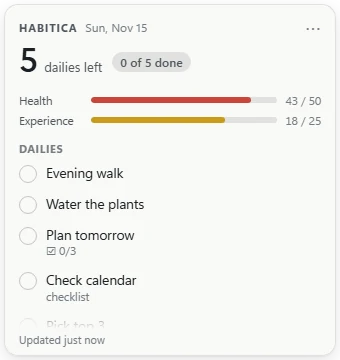
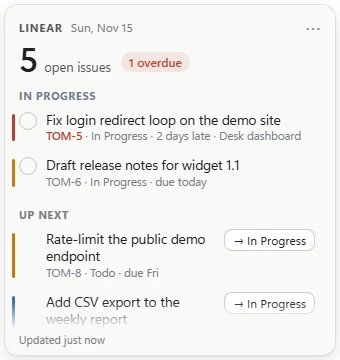
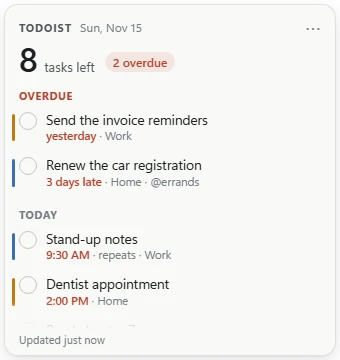
Real captures of the app, with made-up data.
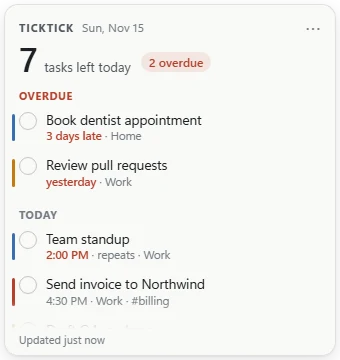
Today for TickTick: due today and overdue, timed tasks in clock order, tick to complete. Today for Habitica: dailies with streaks, habits with + and −, to-dos, health and experience. Today for Todoist: today and overdue, or your own filter, tick to complete. Inbox for Linear: issues assigned to you by lane; move one a step along your workflow. 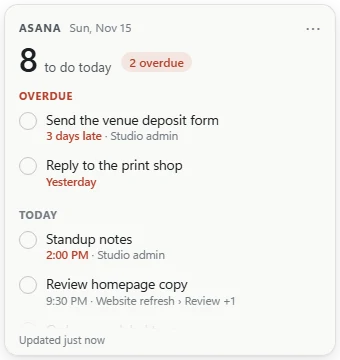
Today for Asana: your tasks due today and overdue across workspaces. 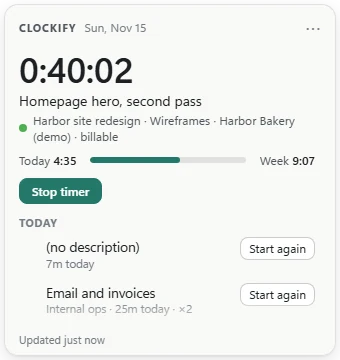
Timer for Clockify: the running timer, today against your goal, this week. Stop or start again. 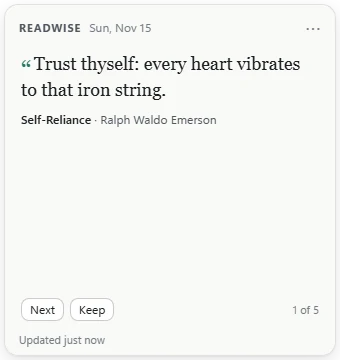
Highlights for Readwise: one highlight at a time, starting with today's Daily Review.
Privacy
Your tokens never leave your PC
- Token stays on your PC
- No account, no server of ours
- No analytics, no ads
You connect each service once with your own personal token. Desk Glance keeps it encrypted with Windows' own data protection and sends it only to that service. Tomorrowish never receives your tokens, your tasks or anything about how you use the app. Privacy policy
Questions
Common questions
Where do I find my token?
TickTick: Settings › Account › API Token. Habitica: Settings › Site Data (or API), your User ID and API Token. Todoist: Settings › Integrations › Developer › API token. Linear: Settings › Security & access › Personal API keys › New key. Asana: My settings › Apps › Developer apps › Create new token. Clockify: Preferences › Advanced › API key. Readwise: readwise.io/access_token, which needs an active Readwise subscription.
What does the bottom line of a widget mean?
“Updated 2 min ago” means all is good. “Offline” means Desk Glance could not reach the service, so you see what it said last, and it tries again every minute. “Asked to wait” means the service asked apps to slow down, and it picks up again by itself. “Sign-in not accepted” means the token was revoked or mistyped: make a new one and paste it under Settings › Sign-ins.
Can I change a widget's size or layer?
Right-click the widget, or click the three dots, for its size (small, medium, large), its layer (on the desktop under your windows, or always on top), its settings, or to remove it.
Habitica will not score my habits
While a new Habitica day is waiting to start, scoring pauses. Open Habitica to start your day and the widget follows.
How do I stop it starting with Windows?
It is on by default. Switch it in Settings › General, or in Task Manager › Startup apps.
More in Desk Glance help, or write to hello@tomorrowish.dev.
Not affiliated with or endorsed by TickTick, Habitica, Doist, Linear, Asana, Clockify or Readwise. Built by Tomorrowish with AI-assisted coding.
Your day, on the desktop
On the Microsoft Store for Windows 10 and 11. Seven services, no Desk Glance account.